
Turning the devices On and Off
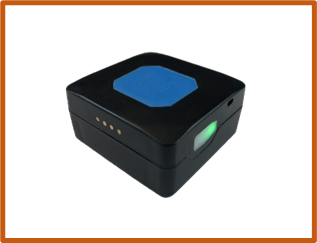
To Turn ON
Press and hold the side button for 3 seconds. When released, the Green light will illuminate for a few seconds, and the unit will vibrate. Place the Tracker at the top of a rucksack in a secure pocket.
To Turn OFF
Press and hold the side button for 3 seconds.
When released, the Red light will illuminate for a few seconds, and the unit will vibrate.
Charging the Device
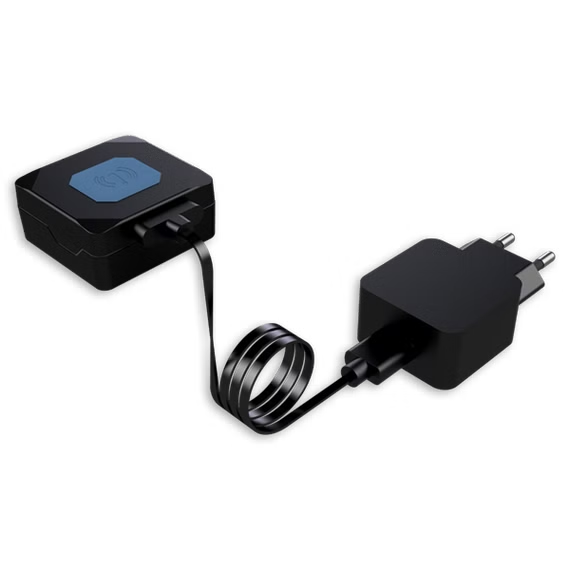
Connect the supplied charging cable to the charging port on the tracker. The magnetic connector will snap into place automatically when aligned correctly.
Plug the cable into a suitable USB power source, such as a car USB adaptor, computer, or wall plug.
The indicator light will begin flashing to show that charging has started.
Keep the device connected until the light remains steady, indicating that the battery is fully charged.
Accessing the portal
The Portal can be accessed either by Tapping the provided NFC card with an NFC enabled device, or heading to https://vulpineoutdoor.co.uk/map-portal/ and selecting your group.
An internet connection is required to view the Portal.
The first time you login, you will be asked for a password. This has been provided to you.
Please get in touch if you need this changing.
Using the Map
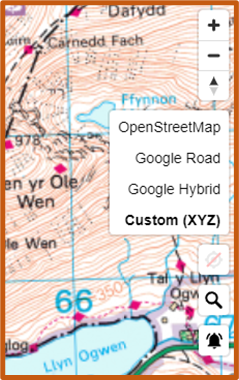
Different Maps can be useful for tracking groups and checking terrain.
You can select between them by pressing the map select button on the right-hand side.
• OpenStreetMap – Detailed and accurate road and footpath map
• Google Road – Accurate Roadmap used by Google
• Google Hybrid – Satellite Images with Google overlay
• Custom (OS Maps) – Ordnance Survey Leisure Maps
The scale of the OS Maps depends on the zoom level – listed here from least zoom to most zoom:
• Standard Simple street-view mapping
• 1:50k Leisure Topography
• 1:25k Leisure Topography (Recommended)
• Standard Vector Map (Shows individual buildings)
Viewing Tracker Information
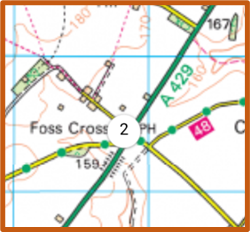
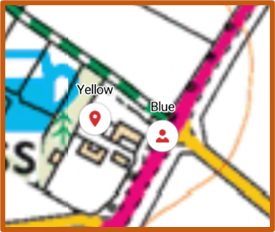
ackers show up on the Map as dots. If multiple trackers are in the same location, then they will become grouped together.
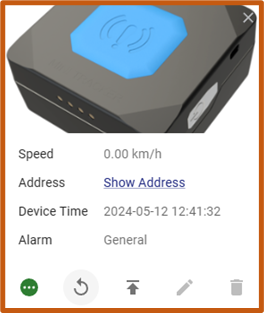
Selecting a Tracker will give additional information including:
- Speed – Given in KM/h
- Street Address – For putting into Satellite Navigation
- Device Time – The last time the Tracker sent its location.
- Alarm – Will only show if the blue button on the unit has been pressed.
Pay attention to the Device Time, as this will indicate when the Tracker was last actively sending its location – in areas of poor signal, this information can be used to locate groups.
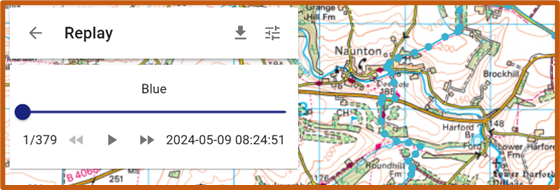
Selecting the button shown here, the history of the Tracker can be displayed. Selecting your time period will allow you to scroll through the data points and download the data for import in other software.
Using your phone as a Tracker
The Companion App can be downloaded to your mobile device. Once installed, it will generate a unique verification code. Send this code to your designated Vulpine Outdoor contact to complete setup. After activation, your phone will automatically share its location with the server, allowing your position to appear on the map for your team.
⚙️ Troubleshooting
🔌 Device Not Charging
- Check that the magnetic charging cable is firmly attached and hasn’t shifted.
- Inspect the charging contacts for dirt or moisture and gently clean if needed.
- Check that one of the chargers isn’t touching bare metal
- Try a different USB power source
🗺️ Portal Not Loading
- Verify you have an active internet connection.
- Try refreshing the page or switching to another browser (Chrome, Safari, Edge).
- If using the NFC card, ensure your phone’s NFC is enabled and the card is tapped near the reader.
- Check that you are using the correct password for your group.
📍 Tracker Location Not Updating
- Look at the Device Time—if it is several minutes old, the tracker may have temporarily lost signal.
- Move the tracker to an open outdoor location and wait for an update. A static tracker might not send an update
- Ensure the tracker is placed at the top of the rucksack.
- Avoid placing the device under metal objects or inside foil‑lined pockets.
- Press the BLUE button – this will force send a location
📱 Phone App Not Showing on the Map
- Ensure the Companion App is installed and running.
- Confirm location permissions are set to Allow Always.
- Check that background activity is enabled.
- Verify that you sent the correct verification code to your Vulpine Outdoor contact.
🧭 GPS Accuracy Issues
- Move to an open area away from tall buildings or dense tree cover.
- Ensure the tracker is not buried deep inside a bag.
- Wait a few minutes—GPS accuracy often improves after initial lock.