
Turning the devices On and Off
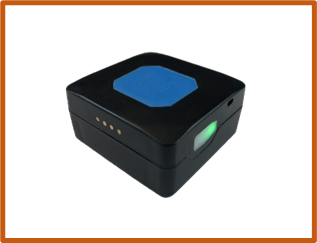
To Turn ON
Press and hold the side button for 3 seconds. When released, the Green light will illuminate for a few seconds, and the unit will vibrate. Place the Tracker at the top of a rucksack in a secure pocket.
To Turn OFF
Press and hold the side button for 3 seconds.
When released, the Red light will illuminate for a few seconds, and the unit will vibrate.
Accessing the portal
The Portal can be accessed either by Tapping the provided NFC card with an NFC enabled device, or Scanning the QR code, or heading to https://vulpineoutdoor.co.uk/map-portal/.
An internet connection is required to view the Portal.
The first time you login, you will be asked for a password. This has been provided to you.
Please get in touch if you need this changing.
Using the Map
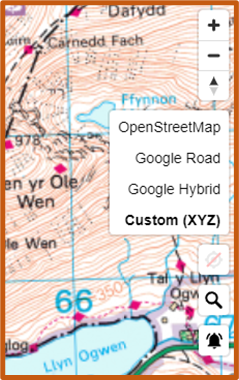
Different Maps can be useful for tracking groups and checking terrain.
You can select between them by pressing the map select button on the right-hand side.
• OpenStreetMap – Detailed and accurate road and footpath map
• Google Road – Accurate Roadmap used by Google
• Google Hybrid – Satellite Images with Google overlay
• Custom (OS Maps) – Ordnance Survey Leisure Maps
The scale of the OS Maps depends on the zoom level – listed here from least zoom to most zoom:
• Standard Simple street-view mapping
• 1:50k Leisure Topography
• 1:25k Leisure Topography (Recommended)
• Standard Vector Map (Shows individual buildings)
Viewing Tracker Information
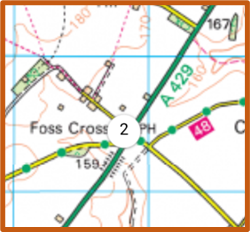
ackers show up on the Map as dots. If multiple trackers are in the same location, then they will become grouped together.
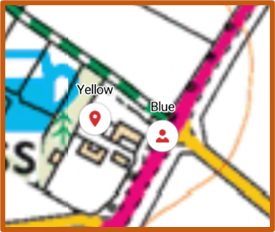
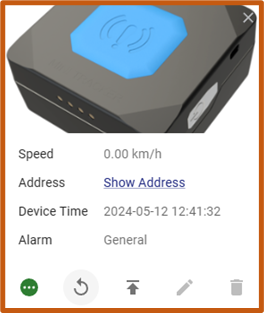
Selecting a Tracker will give additional information including:
- Speed – Given in KM/h
- Street Address – For putting into Satellite Navigation
- Device Time – The last time the Tracker sent its location.
- Alarm – Will only show if the blue button on the unit has been pressed.
Pay attention to the Device Time, as this will indicate when the Tracker was last actively sending its location – in areas of poor signal, this information can be used to locate groups.
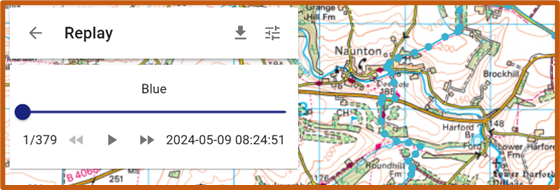
Selecting the button shown here, the history of the Tracker can be displayed. Selecting your time period will allow you to scroll through the data points and download the data for import in other software.